Better Stickies 1.5: Easier Editing, New Mac Menus, Native Wayland and a Windows Installer
Better Stickies 1.5 is out for Windows, macOS and Linux. Editing gets easier on every platform: a toolbar appears over the text you select, Ctrl+F finds words inside a note, and your latest notes are one click away. On top of that, each platform gets its own big step: the Mac gets new menus and Dock features, Linux can run as a native Wayland app, and Windows gets an installer.
It is a free download for all three. Here is what is new.
Easier Editing on Every Platform
A Toolbar Over the Text You Select
Select text with the mouse (drag across it, double-click a word or triple-click a line) and a small toolbar appears just above it with Strikethrough, Highlight, Link and Code block. It stays up while you use it, so a line can be struck through and highlighted in one go, and it goes away when you click elsewhere or keep typing. Every tool keeps its keyboard shortcut, and selecting with the keyboard never shows the toolbar.
With those tools moved up, the footer is shorter: nine buttons in four groups that fit on one row at the usual note width, so most notes gain a line of text. Insert Link… is also in the right-click menu now. See Text Formatting.
Find in a Note
Ctrl+F (⌘F on a Mac) in a note opens a find bar under its text. Every match on the page lights up with a count beside it ("3 of 12"), and Enter steps to the next one. Find ignores case, searches code blocks and the names of file shortcuts and sound clips too, and changes nothing in the note, so it works on locked notes. In the hub, Ctrl+F still opens Search Notes.
Your Latest Notes, One Click Away
Right-click the tray icon (on a Mac, the Dock icon) and the menu now starts with the five notes you edited most recently, each named by its title or first line. Click one to bring it to the front: a hidden note comes back, a collapsed one opens up, and a minimized one is restored. Every other note is under Search Notes in the same menu.
Code Blocks in Your Note's Color
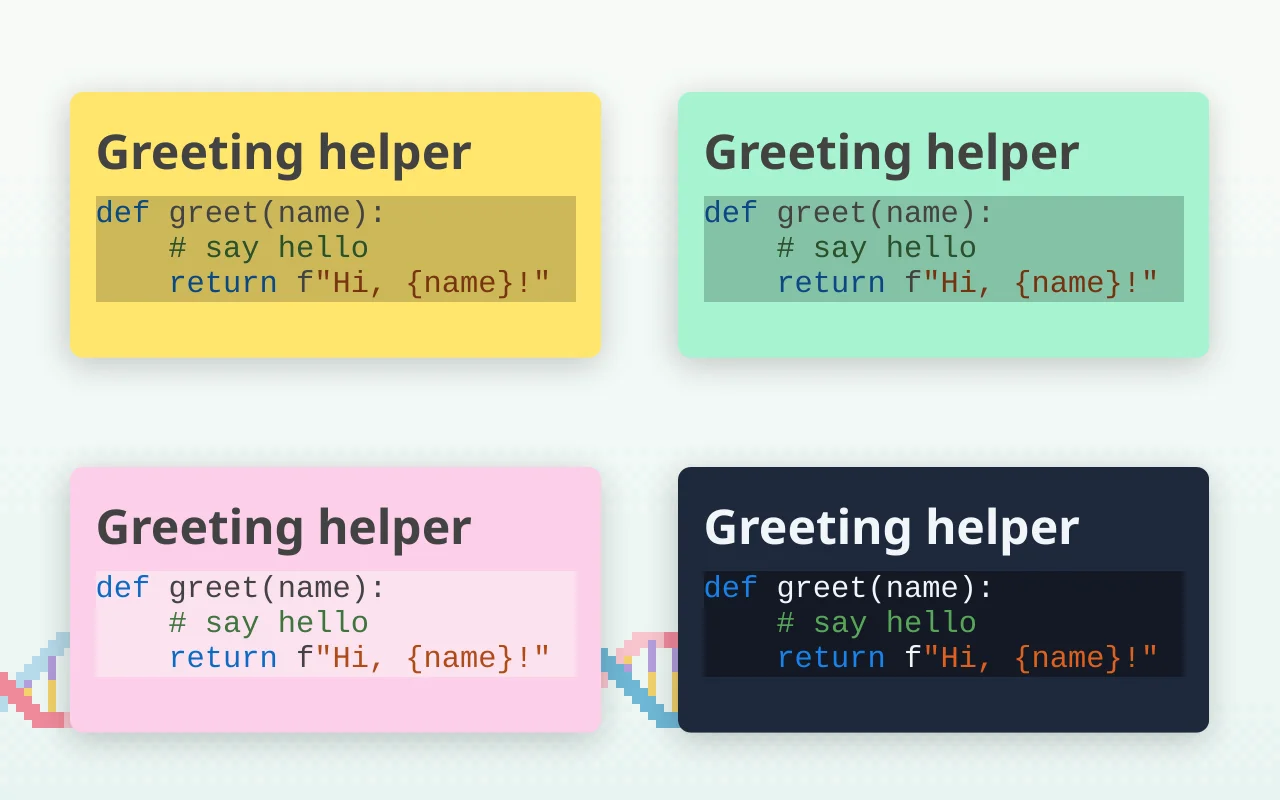
A code block's background is now a shade of the note's own color instead of a fixed light or dark panel, and the code uses the note's text color. Change either color and every code block follows at once, and switching the app theme no longer changes them. A code block of ordinary sentences, such as a pasted Markdown section, is no longer colored like code.
macOS: New Menus and Dock Features
The menu bar now has an Edit menu (with the Mac's own Emoji & Symbols and Start Dictation), a Window menu whose Minimize and Bring All to Front work on the hub and your notes, and a Help menu that opens Better Stickies Help and searches the menus. About Better Stickies sits in the app menu like in other Mac apps, and its settings item reads Settings… in every language.
Right-click the Dock icon and its menu starts with your five latest notes. A note set to Always on Top now stays on screen over a full-screen app, and you can type in it there. Moving a note to the trash asks in the Mac's own alert, and the app icon is now the logo on a cream rounded square, the same in Finder, Launchpad and the Dock while the app runs.
Linux: Native Wayland
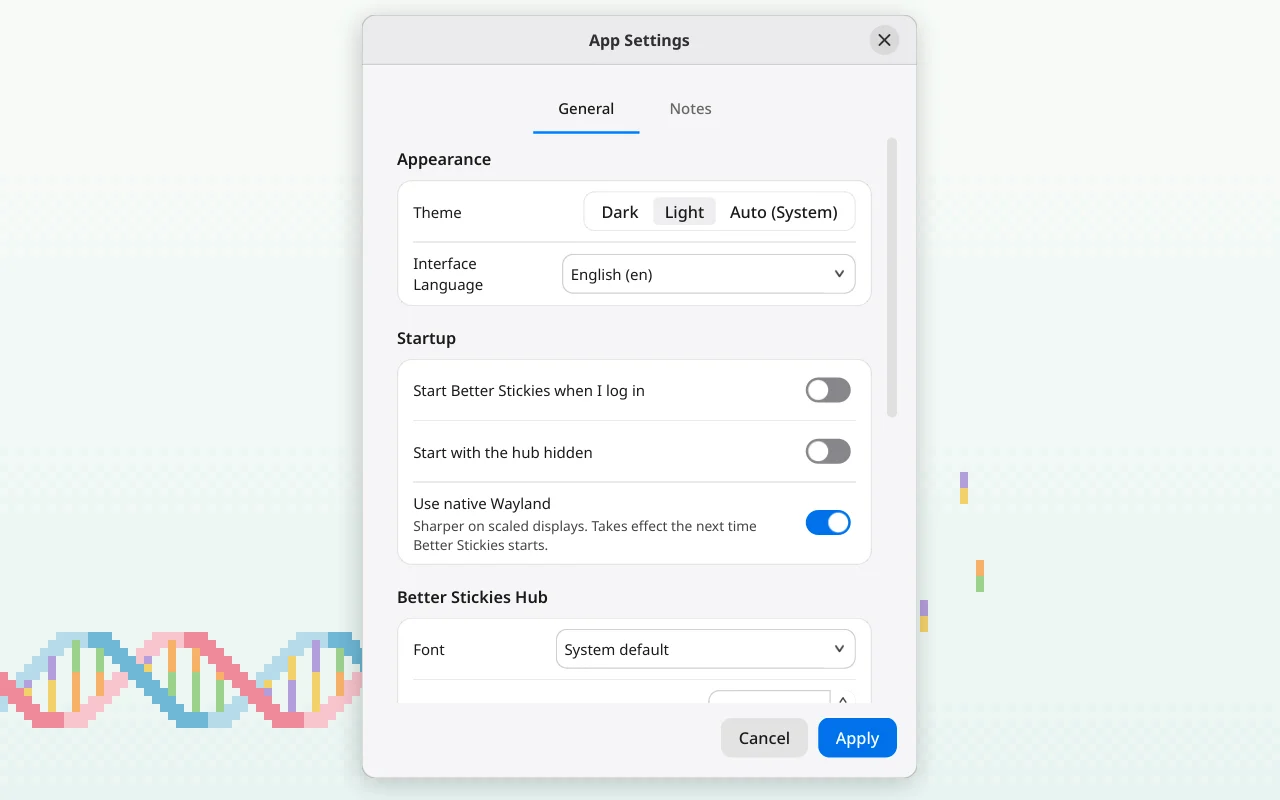
Better Stickies now runs as a native Wayland app where no X11 is available, most notably the Flathub version on a Wayland desktop, so it looks sharper on scaled displays. Everywhere else it keeps the X11 mode that remembers where your notes are, and Use native Wayland in Settings › General › Startup lets you try native Wayland anyway. On native Wayland the desktop decides where windows go, so snap to grid and always on top are greyed out, except on KDE Plasma: there Better Stickies asks KDE's window manager for help, so always on top works and notes come back where you left them. The Troubleshooting page lists every difference.
The AppImage also runs straight from its file now instead of unpacking about 200 MB to a temporary folder at every start, so it starts a little faster and uses less memory. Dragging a note is your desktop's own window move.
Windows: An Installer
Windows now gets BetterStickies_1.5.0_Setup.exe, a two-click setup that installs just for you, so it never asks for an administrator password. Better Stickies appears in the Start menu (a desktop shortcut is optional) and in Settings › Apps, and uninstalling removes the program but keeps your notes and settings. To update later, run the next version's setup: it closes the running app for you, saves your notes first, and starts the new version when it finishes. The installed app also starts without unpacking itself each time, so the splash screen is gone.
Installation walks through it step by step. The setup is not signed yet, so Windows may show "Windows protected your PC" first: click More info, then Run anyway. Coming from the single-file .exe of 1.4? Quit it and run the setup: your notes are still there, launch at login moves to the installed copy, and the old file can be deleted.
Premium Is Activated in the App
There is now one download per platform for everyone. The app is Free until you activate Premium: install the regular download, open the ☰ menu, click Activate Premium… under About, and approve the computer in your browser. Premium is activated on up to 5 computers per account. Until you activate, notes beyond the Free limit open read-only, and nothing is lost. The older 1.4 Premium download stays on your account page for a while. The Microsoft Store version uses Store purchase instead.
But That's Not All
- A welcome note for new users shows what Better Stickies does beyond a plain sticky note, as a checklist to try, in your language.
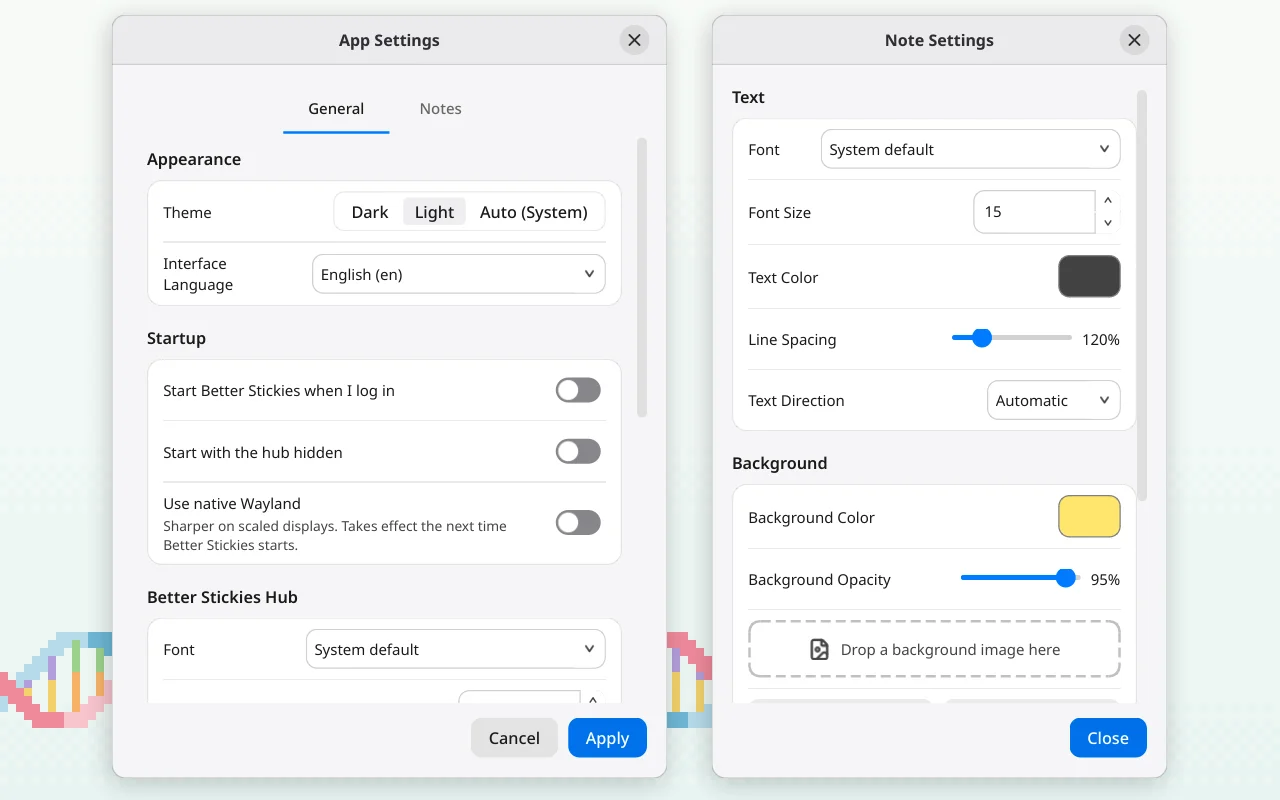
- Settings, redesigned. Options sit on cards, each on/off option is a switch, and nothing moved.
- Ctrl+Shift+M collapses and expands a note (⌘M on a Mac), and Ctrl+N makes a new note from inside a note, not only from the hub.
- Ctrl+W closes every window, from Settings to the color picker.
- Confirmations say what they do: Move to Trash or Delete Forever instead of Yes and No, with a "Don't ask me again" option for moving notes to the trash.
- The reminder window is redesigned and follows your region's 12- or 24-hour clock.
- Notes use your system's font on Windows and Linux, as on a Mac.
The release also carries a long round of fixes. The full list is on the changelog.
Before You Update
1.5 moves each note's reminder into the note's own file and rewrites every note file once, by itself, at the first start. Before it changes anything, it saves your notes as notes-before-1.5.json in the backups folder. This is one-way: 1.4 can't read notes that 1.5 has saved. If you sync the data folder between computers, update every computer that shares it, since 1.4 will refuse to open the notes once one computer has started 1.5. The Backing Up Your Notes guide explains how to go back by hand if you need to.
How to Get Better Stickies 1.5
- Download: for Windows, Linux or macOS from betterstickies.com/download or the GitHub releases page. It is free to use with all features included, limited only to 4 active notes, with no signup and no time limit. Installation walks through each platform.
- Premium: a one-time purchase that removes the note limit. Already have it? Install 1.5 and press Activate Premium….
- Stores: the Microsoft Store and Snap Store builds update as each store approves them, and a Flathub listing is coming soon.
Questions, ideas or a bug to report? Join the Discord or r/BetterStickies. And if Better Stickies helps you, a star on GitHub helps other people find it.