Text Formatting
BetterStickies supports rich text: you can style your notes with headings, bold text, checklists, code snippets, links, and more.
Basic Formatting
Select some text and press the shortcut, or click the button where there is one:
| Style | Shortcut | Button | What it does |
|---|---|---|---|
| Bold | Ctrl+B | Footer | Makes text bold |
| Italic | Ctrl+I | Footer | Makes text italic |
| Underline | Ctrl+U | None (keyboard only) | Draws a line under text |
| Strikethrough | Ctrl+Shift+X | Selection toolbar | Draws a line through text |
All four are toggles. Press the shortcut again to remove the formatting. You can combine them (bold + italic, etc.).
If nothing is selected, the formatting applies to whatever you type next.
Selection Toolbar
Select text with the mouse (drag across it, double-click a word, triple-click a line, or Shift+click to extend a selection) and a small toolbar appears just above it, inside the note. It holds four tools:
| Button | Shortcut | What it does |
|---|---|---|
| Strikethrough | Ctrl+Shift+X | Draws a line through the selected text, or removes it |
| Highlight | Ctrl+Shift+L | Highlights the selection in the color on the button's bar. Hold it, right-click it or click the ▾ in its corner to choose another color or No highlight (see Highlight) |
| Link | Ctrl+K | Opens Insert Link with the selected text as the link's text |
| Code block | Ctrl+M | Turns the selected lines into a code block, or back into normal text |
Hover a button to see its name and shortcut. The toolbar stays up while you use its tools, so you can strike through a line and highlight it in one go. It goes away when you click elsewhere, type, press Escape, change the selection or switch to another window; select again with the mouse to bring it back.
- It shows for mouse selections only. Selecting with the keyboard (Shift+arrows, Ctrl+A) never shows it: every tool keeps its shortcut, and the shortcuts work with nothing selected too
- To add a link with nothing selected, press Ctrl+K or right-click and choose Insert Link…
- A very narrow note (under about 190 px wide) has no room for it; the shortcuts still work there
- Locked notes don't show it, since they can't be edited
On a Mac the highlight and code-block shortcuts are ⇧⌘Y and ⇧⌘M.
Clear Formatting
Select some text and press Ctrl+\ to strip all formatting and reset it to the note's default font, size, and color. You can also right-click selected text and choose Clear Formatting from the menu.
Headings
Use Title and Subtitle to create headings that stand out:
| Style | Shortcut | Appearance |
|---|---|---|
| Title | Ctrl+1 | Large and bold |
| Subtitle | Ctrl+2 | Medium and bold |

Press the shortcut again to turn a heading back into normal text. Title and Subtitle are mutually exclusive: a line can only be one or the other.
Lists
The list button in the footer makes checkbox, bullet or numbered lists. Click it to apply the type you used last (on a line that is already a checkbox, clicking checks or unchecks the box instead); hold it, right-click it, or click the small ▾ in its corner to choose another type. The chooser remembers your pick for every note.
| List type | Shortcut | Notes |
|---|---|---|
| Checkbox | Ctrl+T | On a checkbox line, Ctrl+T checks or unchecks the box |
| Bullet list | Ctrl+Shift+8 | Press again on a bullet line to remove it |
| Numbered list | Ctrl+Shift+7 | Numbers restart after a plain paragraph |
On a Mac several of these keys differ: a checkbox is ⇧⌘L, because ⌘T adds a page there, and the title, subtitle, list and code-block keys follow Apple Notes. See Keyboard Shortcuts › On a Mac.
You can also just type: - or * at the start of a line makes a bullet, 1. a numbered item, [] a checkbox. Press Backspace right after the conversion to get the typed characters back.
- Enter at the end of an item adds the next one; in the middle of an item, the text after the cursor becomes the next item
- Enter on an empty item ends the list
- Tab / Shift+Tab indent and outdent any list line; Backspace at the very start of a bullet or numbered item outdents it too
- Select several lines to convert them all at once. With several checkboxes selected, Ctrl+T checks them all (or unchecks them all if every box is already checked)
- Copy list lines into a plain-text app (Notepad, a terminal, a chat box) and they keep their bullets and numbers, exactly as the note shows them, with nested items indented
Checklists
Press Ctrl+T (or click the list button while it shows a checkbox) to add a checkbox at the start of the current line.
- Check it off: click the checkbox (☐ → ☑). The text gets a strikethrough and the cursor moves to the next line
- Uncheck it: click the checked box (☑ → ☐). The strikethrough is removed
- Long tasks wrap neatly: a task too long for one line continues aligned under its own text, at every nesting level
- Checkboxes and other lists don't work inside code blocks: the list button and Ctrl+T both do nothing there, and a ☐ that's part of pasted code is just text

Nested Lists
Press Tab on a list line to indent it, creating a nested (child) item. Press Shift+Tab to move it back out. This works for checkboxes, bullets and numbered items alike.
Nested numbered lists change style at each level, the way word processors do: 1. at the top, a. one level in, i. the level after that, then back to 1.. Nested lists already in your notes, and nested lists you paste, switch from 1. to this numbering too; a list pasted with its own letters or Roman numerals keeps them.
You can select multiple list lines and press Tab or Shift+Tab to indent or outdent them all at once.

Tips
- Press Enter on a checkbox line to create another checkbox on the next line (in the middle of a task, the rest of the text becomes a new task)
- Press Enter on an empty checkbox line to exit the checklist and go back to normal text
- Indentation stops if it would leave less than 30% of the note width for text
Code Blocks
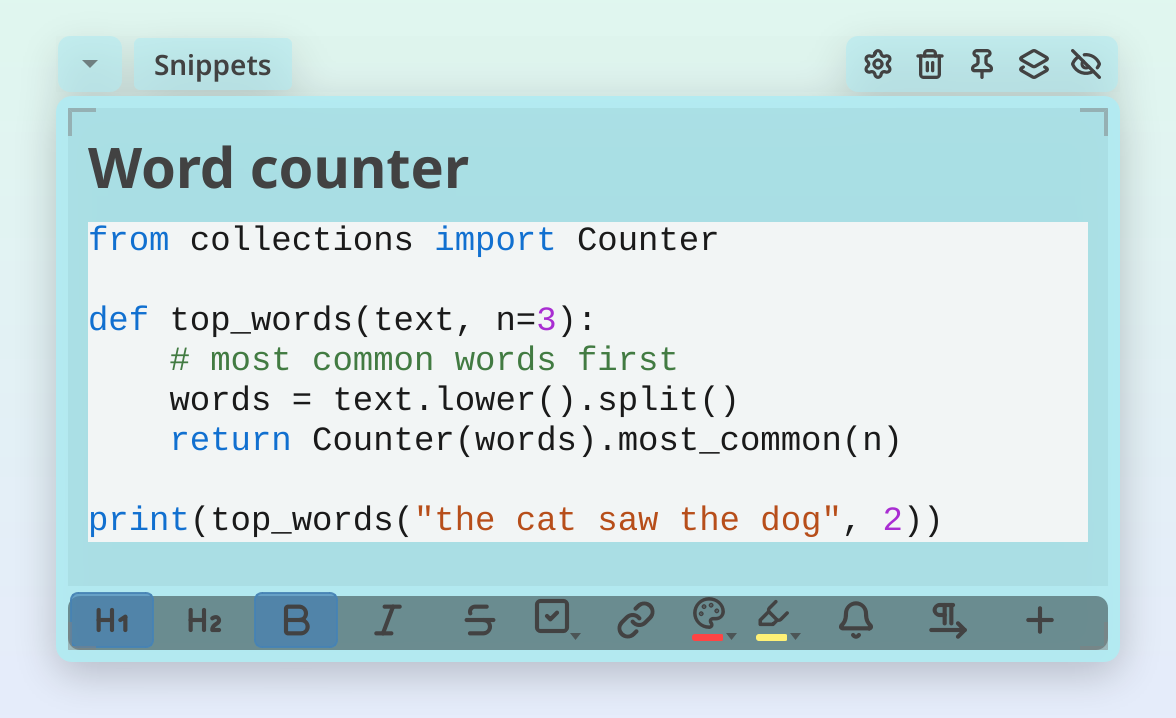
Press Ctrl+M, or select text with the mouse and click Code block in the selection toolbar, to turn selected text (or the current line) into a code block. Code blocks use a monospace font on a shade of your note's color that sets the code off from the text: lighter than the note under dark text, darker under light text (on white and on the palest yellow and orange notes, including the default yellow, a lighter shade would not show, so the shade is slightly darker instead; on a black note it is slightly lighter). The code text uses the note's text color. Code blocks are great for code snippets, terminal commands, or anything that should look like code. Change the note's color or text color and every code block follows. On a note with a background picture, code blocks sit on a neutral gray panel instead (light gray under dark text, dark gray under light text), so the code stays readable over the picture. The app's dark or light theme does not change code blocks.
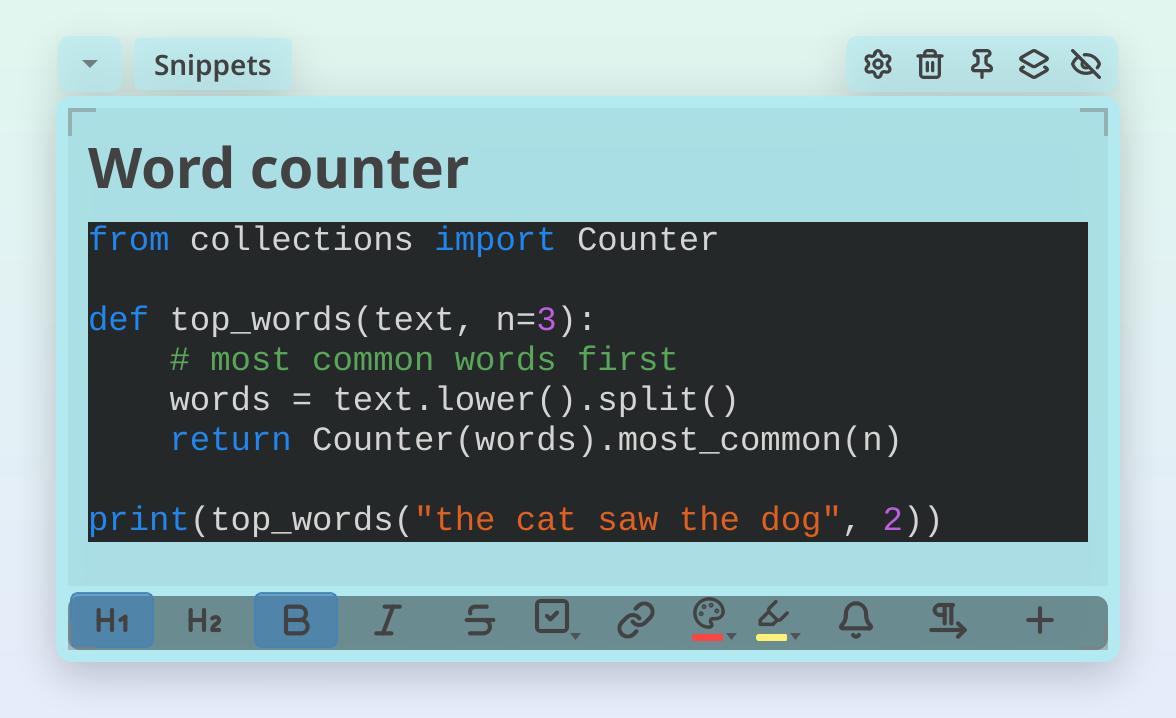
Press Ctrl+M again (or click Code block again) to turn it back into normal text.
Colored Code
Inside a code block, comments, strings, numbers and keywords are shown in their own colors, chosen to stay readable on the code block's background. There is nothing to set up: code blocks are colored as soon as the note is shown, including code you pasted before this feature existed. The colors are only on screen, so copying code out, exporting the note or saving it changes nothing. When BetterStickies recognizes the language (Python, JavaScript and TypeScript, shell and PowerShell, SQL, JSON, YAML, HTML and XML, CSS, Go, Rust, Java, C and C++) it follows that language's rules; otherwise it colors what every language has in common, which includes the keywords of Kotlin, Swift, Dart, PHP, Ruby, Lua and Dockerfiles. A code block that holds ordinary sentences instead of code, such as a section of a pasted Markdown file, stays uncolored, so everyday words and apostrophes aren't painted like code; type some code into a short block like this and the colors come back.
Automatic Code Detection
When you paste multi-line text that looks like code (lots of brackets, semicolons, keywords like import or SELECT), or something that is obviously configuration or a terminal command (a settings file with two or more [section] headings, a .env-style list of settings, or a couple of command lines with flags or pipes), BetterStickies automatically formats it as a code block. If it guesses wrong, just press Ctrl+M to switch it back to normal text.
Exiting a Code Block
Press Backspace on an empty line inside a code block to leave the code block and return to normal formatting.
Pasting Formatted Text
When you paste content from emails, web pages, or documents, BetterStickies keeps the formatting that matters (bold, italic, links, lists, highlights, headings) while adapting fonts and colors to match your note. Pasted code and Markdown are recognized automatically too.
Press Ctrl+Shift+V to paste as plain text, skipping all formatting and detection. See Pasting Content for everything BetterStickies recognizes and how to override it.
Links
Inserting a Link
Select the words you want to link and click Link in the selection toolbar, or press Ctrl+K. With nothing selected, press Ctrl+K or right-click where the link should go and choose Insert Link…. You can also just paste a URL. BetterStickies automatically turns it into a clickable link with an icon.
- Web links show a globe icon
- File links show an icon matching the file type (document, image, music, archive, and more). They're drawn in your note's text color on a soft grey background, with the icon slightly dimmed so it reads as part of the link without competing with the name
Click any link to open it. Web links open in your browser; file links open in your file manager.
Editing or Removing a Link
Right-click on a link to:
- Open Link: open it in your browser or file manager
- Copy Link Address: copy the URL to your clipboard
- Rename Link…: change the display text
- Remove Link: remove the link formatting (the text stays)
File Shortcuts
Drag a file from your file manager into a note to create a clickable shortcut. BetterStickies recognizes the file type and shows a matching icon beside the filename, both in your note's text color. You can also drag shortcuts back out to copy files. See File Shortcuts for the full details.
Images and Screenshots
Paste a screenshot (Ctrl+V) or drag an image into a note. You can choose between inline display or link mode in Menu > Settings… > Notes, under Pasted Images. Hover over image or PDF links to see a thumbnail preview. See Images & Screenshots for display modes, sizes, and more.
Text Color
Click the color button in the footer (or press Ctrl+Shift+C) to apply the color you used last to the selected text, or to whatever you type next. The bar under the button shows that color, and the button lights up while the text at the cursor, or what you are about to type, already has that color; clicking it then removes the color again, the way the Title button works. Text in some other color is simply recolored. Hold the button, right-click it, or click the ▾ in its corner to pick one of twelve preset colors, which then becomes the remembered color; Default color in the same chooser returns the text to the note's default color. The chooser outlines the color the plain click will apply, and the button's tooltip names it. The button never recolors links or code blocks (code text always uses the note's text color), and Default color never clears a link's color.
For a full color picker (a swatch grid, your recent colors, and any custom color by hex value), use the color buttons in Note Settings. See Customizing Your Notes.
Highlight
Select text with the mouse and click the highlight button in the selection toolbar, or press Ctrl+Shift+L, to highlight the selected text in the color shown on the button's bar. With nothing selected, Ctrl+Shift+L highlights whatever you type next. Hold, right-click or click the ▾ to choose one of six highlight colors (yellow, green, pink, blue, orange, purple); No highlight removes a highlight. The button lights up while the selected text has that highlight color; clicking it then removes the highlight again, like the Title button (with nothing selected, Ctrl+Shift+L does the same for the text at the cursor). Text with another highlight color just changes to the one on the bar. Highlighted text is always shown in a dark ink so it stays readable on any note color, unless you had already given it a color of your own. Pressing Enter ends a highlight you started typing in, like bold. Code blocks take no highlights.
Picking a color, a list type, Default color or No highlight needs the mouse: the keyboard shortcuts repeat your last choice.
Alignment
Click the align button in the footer (or press Ctrl+E) to move the line you're on to the center, then to the right, then back. Select several lines first to align them all at once. The button's icon shows where the line sits now, and its tooltip says where the next click puts it.
- Pictures, file shortcuts and sound clips move with their line, so a picture on its own line can be centered the same way
- Lists, checkboxes, titles and subtitles can be aligned too, and Enter carries the alignment on to the next line
- In a right-to-left line, the button switches between right (where the line normally sits) and center
- Code blocks always stay on the left: the button is greyed out inside one
- Clear Formatting leaves alignment alone
On a Mac, the shortcut is ⌘E.
Right-to-Left Text
Each note has a Text Direction, which you set in the note's Settings (gear icon in the header):
| Text Direction | What it does |
|---|---|
| Automatic | Each line follows its own language: Arabic and Hebrew lines sit on the right, everything else on the left |
| Right to left | Every line is right-to-left, English lines included |
| Left to right | Every line is left-to-right, Arabic and Hebrew lines included |
Press Ctrl+Shift+R to switch the note between Right to left and Left to right. Changing the direction doesn't count as an edit, so Ctrl+Z never switches it back.
New notes start as Automatic, and if the first thing you type in a new note is Arabic or Hebrew, the note switches to Right to left by itself. To start every new note in one direction, pick it under Text Direction in Menu > Settings…, in the Text section of the Notes tab.
Code blocks always stay left-to-right, since code reads that way in every language.
Text Size
Hold Ctrl and scroll the mouse wheel to zoom text in or out. The size range is 8pt to 72pt. Headings scale proportionally: if you zoom in, titles and subtitles stay larger relative to body text.
You can also set a specific font size in the note's Settings (gear icon in the header).
See Also
- Keyboard Shortcuts: full list of formatting shortcuts
- Languages: right-to-left languages and typing in Arabic or Hebrew
- Pasting Content: what happens when you press Ctrl+V
- Images & Screenshots: paste images and screenshots into notes
- File Shortcuts: drag files into notes as clickable shortcuts
- Getting Started: overview of notes and the hub