Better Stickies 1.6: Side Notes, a Docked Hub, Archive and More
Better Stickies 1.6 is out for Windows, macOS and Linux. Its headline is side notes: dock a note to the left or right edge of your screen and it waits there as a slim tab, one click from open. It also adds Archive for notes you're done with, links pasted onto the words you select, and a lighter look.
Updated for 1.6.5: the hub can now dock to the edge too, as a slim rail above your side notes; a side note's tab can move up, down or to the other edge; side notes work on KDE Plasma as a native Wayland app; and collapsed notes are only as wide as their title. If you use the Flathub version, 1.6.5 will be your first 1.6 (its update follows shortly), so everything below is new to you.
It is a free update, and everything in it works in the free version. Here is what is new.
New in 1.6.5: Dock the Hub to the Edge of Your Screen
The hub can now join your side notes on the edge of the screen. Open the hub's ☰ menu and choose Dock to Left Edge or Dock to Right Edge: the hub becomes a slim rail of its own buttons at the top of that edge, above your side notes' tabs. The rail keeps the hub's everyday buttons one click away: New Note, Search, Reminders (with its overdue count), the ☰ menu and Hide.
On Windows and Mac you can also drag the hub until the pointer reaches the left or right edge of the screen. On Linux, docking is in the menu only. Right-click the rail to Undock Hub (the hub comes back where you last kept it), Move to Other Edge or Hide Hub. The tray icon (on a Mac, the Dock icon) brings a hidden rail back, and a docked hub comes back docked after a restart.
Side Notes: Park a Note on the Edge of Your Screen
Some notes you want close at hand but not in the way: today's list, a phone number, the snippet you keep pasting. Dock one to the left or right edge of your screen and it shrinks into a slim tab showing its title (or its first line), in the note's color, or the average color of its background picture.
Click the tab and the note flows out beside the edge, ready to type in. Everything works as in any note: pages, reminders, resizing, the toolbar. Click the tab again, press Esc or click the arrow in its header, and the note tucks back. Clicking another app never tucks it away, so it stays open until you're done with it. One note per edge is open at a time: opening another tab on the same edge tucks the first one away.
There are two ways to dock a note:
- Everywhere: right-click in the note's text and choose Dock to Left Edge or Dock to Right Edge.
- On Windows and Mac: drag the note by its header until the pointer reaches the left or right edge of the screen, and let go. The tab appears at the edge to show where it will go.
To undock, choose Undock in the tab's right-click menu or in the note's own, or drag the open note away from the edge. Either way it stays where it is as an ordinary note.
Moving a tab (1.6.5): right-click a tucked tab and choose Move Up or Move Down to change its place on the edge, or Move to Left Edge (or Right Edge) to send it to the other side of its screen, where it joins the end. If that side touches another monitor, the tab goes to that side's outer edge, and when that edge is full the entry is greyed out. An open note's tab offers no moves (tuck the note away first), and neither does a locked note's.
The tabs do a few things of their own. A tab glows when its note's reminder is due, shows little moving bars while a sound clip in the note is playing, and opens its note when you hold a file you're dragging over it, so you can drop the file in. Docked notes come back as tabs after a restart. Docking works on the outer left and right edges of your screens, and an edge holds as many tabs as fit.
Docking switches the note's Always on Top on, so its tab stays above your other windows. Switch it off and the note and its tab go behind other apps together.
On Linux, docking is in the right-click menu only, because dragging a window to the edge of the screen there lets your desktop tile it to half the screen. As a native Wayland app (the Flathub version on a Wayland desktop, or with Use native Wayland switched on), docking works on KDE Plasma from 1.6.5, notes and hub alike, with no setup: KDE's window manager places the tabs, so notes dock, open and tuck at once, without the animation. It stays off on GNOME and the other native Wayland desktops, and in the Snap version. Docking Notes to the Screen Edge covers the rest, from locked notes to a full edge.
Archive: Keep Finished Notes Off Your Desktop
Archive was requested on Reddit by a Premium user, for the notes you're done with but don't want to delete. Right-click in a note and choose Archive Note, or select it in Search Notes and click Archive. The note leaves your desktop, Show All Notes never brings it back, and it no longer counts toward the free version's note limit, so archiving a finished note makes room for a new one.
Search Notes gains an Archived filter beside All, Visible and Hidden. Archived notes are searched on every page, preview exactly as they look and carry an Archived badge under All. While you have archived notes, View Archive in the hub's ☰ menu opens Search on them, and Export Notes includes them.
To bring a note back, click Unarchive or simply open it: it returns where it was on your desktop. On the free version that needs room for each of its tabs. Archiving deletes a note's reminder for good, so a note with a reminder asks first. See Archived Notes in the Search guide.
Paste a Link Onto the Words You Select
Copy a web address, select some words on one line of a note and paste: the words stay and become a link to that address, instead of being replaced by it.
It takes one whole address with its https://, http://, ftp:// or mailto: written out. Anything else replaces the selected words as before, and so does Paste as Plain Text (Ctrl+Shift+V, ⇧⌘V on a Mac) when you do want the address itself. Pasting Content has the details.
A Lighter Look
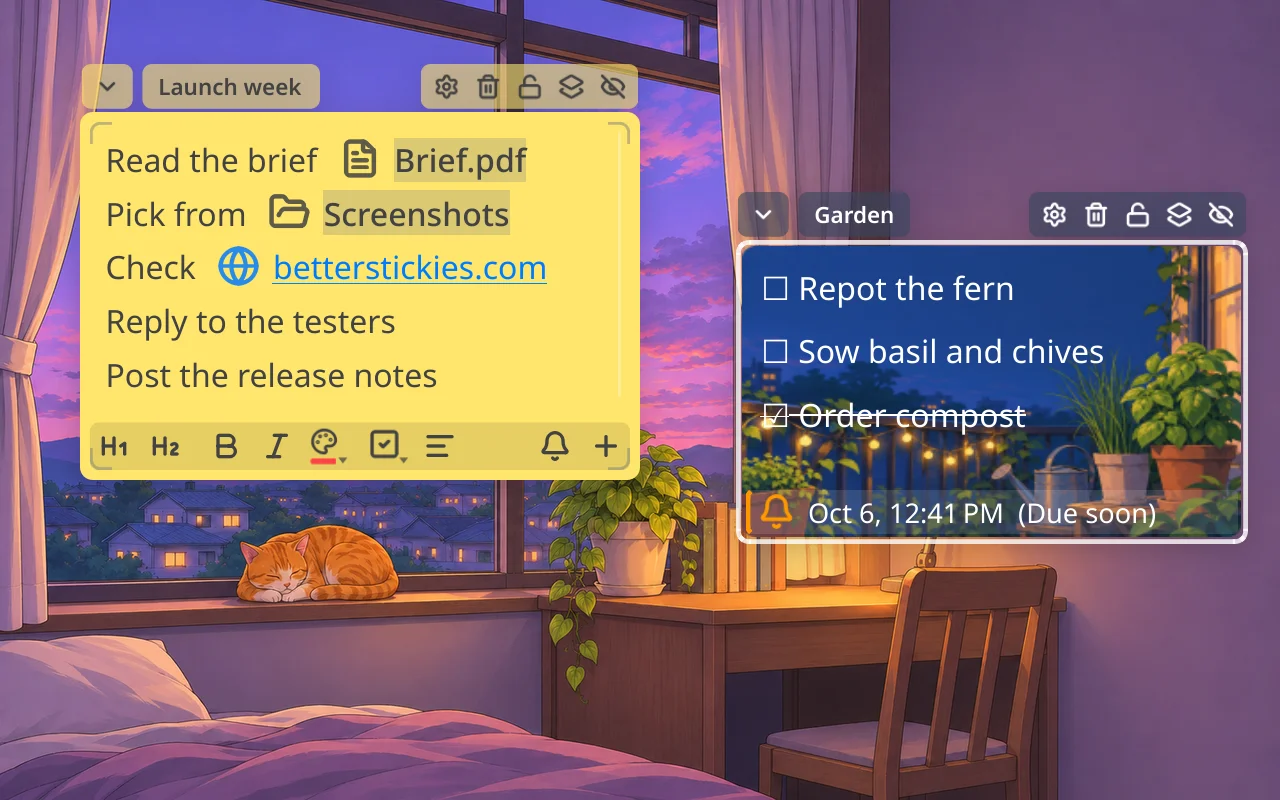
- A lighter footer. The formatting bar at the bottom of a note is now a light shade of the note's color, matching the reminder and audio bars above it, instead of a dark band that turned a yellow note's bar olive. The reminder and Add Page buttons sit at the bar's far end.
- Picture notes wear the picture's color. On a note with a background picture, the buttons beside the title, the title (or the date) and a collapsed note's bar take the picture's average color, as a side note's tab does, instead of the note's color, which the picture hides. The reminder and audio bars shade to suit the picture too: lighter over a dark picture, darker over a bright one.
- A collapsed note is only as wide as its title (1.6.5). The bar used to stay as wide as the note, with every header button on it. Now it fits the title, so a stack of collapsed notes takes much less room. At rest it shows only the reminder bell in its status color (green, orange or red), a locked note's lock and the Free-limit crown; hover over it and Lock, Always on top and Hide appear after a moment.
- Larger file icons, even lines. File and folder shortcut icons, link icons and a sound clip's ▶ badge are now as tall as a line of text and a little less faded, and a line holding one is no longer taller than the lines around it. Notes from earlier versions get the new look as they open.
A More Native Mac (1.6.5)
- Real Mac right-click menus. Right-clicking in a note, on a side note's tab, in Search Notes, on the docked hub, and the hub's ☰ and reminder menus now open the system's own menu, with its translucent look. The items and what they do are the same; like other Mac menus, they show text only.
- Notes fade in and out. Showing or hiding a single note fades it instead of popping it on and off the screen. With Reduce motion on in System Settings, notes appear and disappear at once.
- Title bars match the app's theme. With an explicit Light or Dark theme, dialogs' title bars and the Move to Trash alert now follow the app instead of the Mac. With Auto, the app follows your Mac as before.
- Hover works while another app is in front. A note shows its header buttons and corner grips as soon as the pointer is over it, without a click first.
- First start in your Mac's language. A new install starts in the first language of your Mac's Language & Region list that Better Stickies is translated into, welcome note included.
1.6 also fixes a round of paste and link bugs, a rare freeze when changing the language, and two annoyances on the Mac. 1.6.5 adds a round of fixes on every platform, from copying links to narrow notes and the KDE Neon AppImage. The full list is on the changelog.
If You Go Back to 1.5
Version 1.5 opens notes saved by 1.6, so nothing is lost if you need to go back. It shows archived notes as hidden notes, though: there, Show All Notes brings them back and they count toward the free limit, and a note 1.5 changes comes back unarchived when you update again.
How to Get Better Stickies 1.6.5
- Download: for Windows, Linux or macOS from betterstickies.com/download or the GitHub releases page. It is free to use with all features included, limited only to 4 active notes, with no signup and no time limit.
- Updating: your notes, settings and Premium activation carry over. On Windows, run the 1.6.5 setup: it offers to close the running app, saves your notes first, and starts the new version when it finishes. On a Mac, quit Better Stickies, drag the new version onto Applications and choose Replace. Installation covers the AppImage, Snap and Flatpak.
- Premium: a one-time purchase that removes the note limit, activated in the app on up to 5 computers per account. The Microsoft Store version uses Store purchase instead.
- Stores: the Microsoft Store and Snap Store builds update as each store approves them, and the Flathub version follows shortly, through your software center.
Questions, ideas or a bug to report? Join the Discord or r/BetterStickies. And if Better Stickies helps you, a star on GitHub helps other people find it.