Search Notes
Search Notes is your notes browser: find any note by typing, read it in a preview without putting it on your desktop, and hide, lock, rename, export or delete it right there.
Opening Search
- Click the search icon in the hub
- Press Ctrl+F while the hub is focused (in a note, Ctrl+F finds text in that note instead, below)
- Press Ctrl+Alt+S from anywhere (global shortcut; ⌃⌥S on a Mac)
- Choose Search Notes in the tray menu (the Dock menu on a Mac)
Search opens fresh every time: an empty search box, all your notes, the most recently edited first.

Finding a Note
Type in the search box (it reads Search notes until you do). The list updates as you type, so there's no need to press Enter.
- Default: searches both note text and titles
- Title only: click the Title only button beside the search box to search only note titles (it stays lit while it's on; click it again to switch it off)
Notes whose title, or first line if they have no title, contains your search come first. So typing a note's name finds that note at the top, even if other notes mention the same word and were edited more recently.
All, Visible and Hidden
Under the search box, a switch with three parts chooses which notes the list shows:
- All: every note (this is where Search always starts)
- Visible: only the notes on your screen
- Hidden: only the notes you've hidden, which makes Search the quickest way to find and read them
Each part shows, beside its name, how many results it would list for what you've typed (for example All 4). The count at the bottom of the window matches the part you picked.
Sorting
The Sort button next to the filters shows the current order, for example Modified ↓. Choose Modified, Created or Title; choosing the same one again reverses it. Modified and Created start with the newest first, Title starts from A. Sorting by Title puts notes without a title first, oldest to newest.
While you're searching, the notes whose title (or first line) matches stay at the top whichever order you pick.
The List
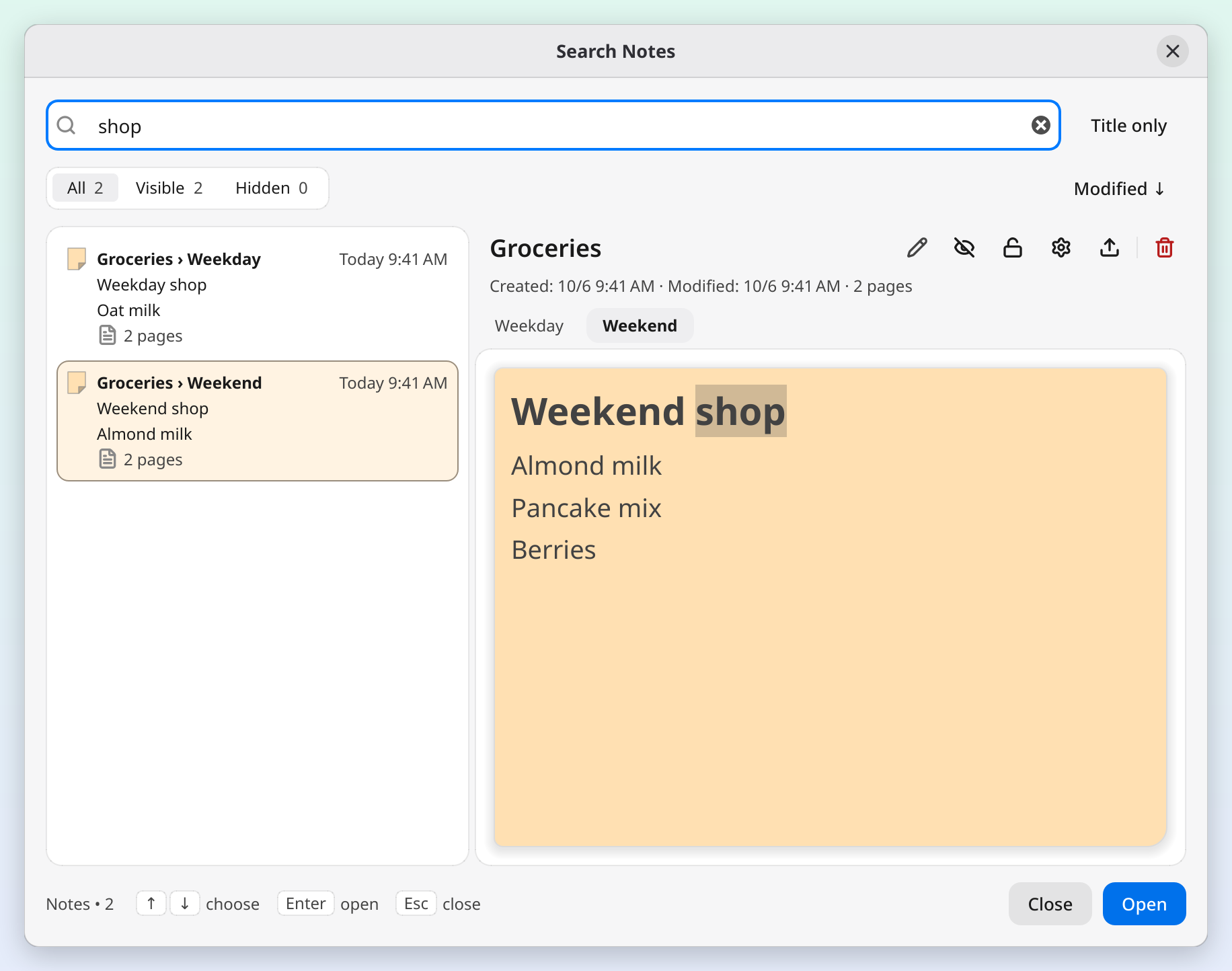
Each note is a card: a small paper swatch in the note's color, its title, when it was last edited, its first two lines, and small badges. The selected card is tinted in the note's own color.
- Title: a note without a title shows its creation date instead (hover for the full date and time)
- Last edited: Today 2:30 PM, Yesterday 9:15 AM, 3 days ago, then the date for older notes. Dates and times follow your language
- First two lines: if the page starts with the note's title, that line is skipped so the title doesn't show twice. A page holding only a picture reads Image only, an empty one Empty note
- Long titles and badges: a title too long for the card ends in "…" and keeps its beginning, in any language. In a narrow list the last badge that partly fits ends in "…" and the ones after it are left out
| Badge | Means |
|---|---|
| Pages | The note has several pages (tabs) |
| Bell and a time | The note's reminder; the bell is green, orange or red like the note's own bell |
| Locked | You locked the note |
| Crown | The note is read-only because it is over the Free limit |
| Hidden | The note is hidden from your desktop |
Notes With Tabs
Search reads every page of a note, including pages you've never opened and notes that are hidden. If your search appears on two of a note's pages, you get two cards, and each names the note and the tab:
Groceries › Weekend
Single-page notes look exactly as they always have. See Note Tabs for how pages work.
The Preview
Select a card and the right side shows the note as it looks: its colors, lists, checkboxes, code, pictures and file shortcuts. On a note with tabs, the tabs above the preview let you read each page. Your search is highlighted in the preview.
The preview is for reading. You can select and copy text from it, but you can't edit there (open the note for that), and links in it don't open.
Above the preview are the note's title, its buttons, and one line with when it was created and edited, its pages, its reminder and whether it's locked (hover the line for the full dates).
- Title: click it, or the pencil, to rename the note. Enter saves, Escape undoes your change, and clicking anywhere else saves too. A locked note's title can't be renamed until you unlock it. If the title is too long to fit, hover over it to read it in full.
- Hide / Show: hides the note from your desktop, or brings a hidden note back. The note stays in the list.
- Lock / Unlock: the same as the note's own Lock button. A locked note can't be moved or edited.
- Note settings: opens the note's settings beside Search; the preview follows each change as you make it.
- Export: saves just this note as a text, Markdown or JSON file, named after the note.
- Delete: the same delete as the note's own header button (see below).
Hover a button to see its name. Lock lights up while the note is locked, and on macOS and Windows the lit buttons, the focused tab and the focus rings in Search follow the accent color you picked for your system. Search stays open after each of these, and the card keeps its place in the list until you change the search, a filter or the order.
Opening a Note
- Double-click a card
- Select a card and press Enter, or click Open
- Right-click a card and choose Open
You can stay in the search box: press Enter straight after typing and Search opens the top result for what you just typed, or pick another one first with the arrow keys. If you clicked a tab in the preview, the note opens on that tab.
Search closes and the note comes to the front. A hidden note becomes visible, a collapsed one expands, and every occurrence of your search is highlighted in the note so you can spot it. The highlight is only a marker: it's never saved, and it clears as soon as you type, click into the note, press Escape, switch tabs or hide the note.
Deleting a Note
- Select a card and click the Delete button above the preview
- Click a card, then press Delete (the key works while the list has focus, not while you're typing in the search box)
- Right-click a card and choose Delete
The same confirmation rules apply as on the note itself, and the note goes to the Trash, where you can restore it. A card that points at one of a note's tabs deletes the whole note. Deleted notes are in the Trash, not in Search.
Keyboard Shortcuts
| Shortcut | Action |
|---|---|
| Ctrl+Alt+S | Open Search (global) |
| Ctrl+F | Jump back to the search box |
| Up/Down arrows, Page Up/Page Down | Move through the list, even while typing in the search box |
| Enter | Open the selected note (in the title field: save the new title) |
| Delete | Move the selected note to the Trash (click a card first) |
| Escape | Close Search (in the title field: undo your change first) |
| Ctrl+W | Close Search |
On a Mac, ⌘F and ⌘W replace Ctrl+F and Ctrl+W, the global shortcut is ⌃⌥S, and ⌘⌫ also deletes.
The bottom of the Search window shows the arrows, Enter and Escape as small key caps, as a reminder. They hide when the window is too narrow for them.
Finding Text in One Note
In a note, Ctrl+F (⌘F on a Mac) opens a find bar for that note instead of Search: every match on the page you are on lights up, the count shows beside it, and Enter / Shift+Enter step through them. Opening a note from Search closes its find bar. See Keyboard Shortcuts.
Good to Know
- Your notes appear on all virtual desktops and KDE Plasma Activities, so opening a note from Search always works. See Virtual Desktops.
- A note over the Free limit shows the crown and opens read-only: you can still hide, lock, export or delete it from Search. Upgrade to Premium to keep every note editable.
See Also
- Getting Started: overview of notes and the hub
- Keyboard Shortcuts: Ctrl+Alt+S and other shortcuts
- Reminders: set reminders on notes so you don't forget them
- Trash & Recovery: restore a note you deleted from Search
- Troubleshooting: help with common issues