Images & Screenshots
Paste screenshots, drag in photos, and preview images, all inside your notes.
Pasting a Screenshot
Take a screenshot (or copy any image to your clipboard) and press Ctrl+V in a note. The image appears right where your cursor is.
Screenshots are saved automatically in your data folder, so they stick around even after you restart.
Dragging Images In
Drag an image file from your file manager into a note. It works just like pasting. The image shows up in your note.
Supported formats: PNG, JPG, GIF, BMP, SVG, WebP, ICO, and TIFF.
The note keeps its own copy of each image, at most 3840 pixels on its longest side. Your original file is never changed.
While a Picture Is Saving
Pasted and dropped pictures appear in your note right away, even several large photos at once. Each one first shows as a soft grey box with the picture's shape and size, then fills in a moment later, once the note has saved its copy (a big phone photo takes about a second). Nothing moves when it fills in, and you can keep typing, scrolling and using other notes meanwhile.
- Clicking a picture that hasn't filled in yet does nothing. Click it again once it shows.
- Ctrl+Z removes the pictures you just added, whether or not they have filled in.
- In Link mode the shortcut appears at once. Clicking it before the picture is saved does nothing.
- If you quit while pictures are still saving, BetterStickies waits for them, usually no more than about 10 seconds, before it closes. A picture that still isn't saved by then shows as the small blank-page icon described below the next time you open the note.
- In rare cases, such as a damaged photo or a full disk, a picture can't be saved. The note then shows a small blank-page icon where the picture was (or a shortcut that can't open). Remove it with Ctrl+Z or delete it, and try adding the picture again.
Notes with Many Large Pictures
Notes full of big photos or screenshots stay responsive, however many pictures they hold.
- Opening a note (or a tab you haven't looked at yet): the text appears right away. Each large picture first shows as the same soft grey box, already at its final size, and fills in a moment later. Nothing moves when it does. Smaller pictures usually appear straight away.
- Resizing a note never freezes it. When you make the note narrower, pictures shrink at once and look a little soft for a moment before they sharpen. When you make it wider, they grow a moment after you stop dragging.
- Changing Background Opacity works the same way: the picture keeps its current look for a moment, then updates. Changing a picture's size behaves like resizing the note: smaller applies at once, larger a moment later.
You can keep typing and scrolling while pictures fill in.
Display Modes
You can choose how images appear in your notes:
| Mode | What it does |
|---|---|
| Inline | The image shows directly in your note (default) |
| Link | A clickable shortcut to the image file |
To change the mode, open Menu > Settings… from the hub, go to the Notes tab and pick Inline or Link for Pasted Images in the All Notes section.
Image Sizes
When using inline mode, you can control how large images appear:
| Size | Width |
|---|---|
| Full | Takes up the full note width (default) |
| Medium | Half the note width |
| Small | Quarter of the note width |
These sizes are maximums: a small image is never stretched past its own resolution, and images re-fit automatically when you resize the note.
Set the default size with Image Size, right under Pasted Images in Menu > Settings… > Notes (it shows only while Inline is picked). You can also right-click an inline image to change its size individually.
Enlarging an Image
Click any inline image to view it full size. The mouse pointer changes to a hand over images to show they're clickable. The image opens centered on your screen (scaled down only if it's bigger than your screen), so small text in screenshots (code, error messages, receipts) becomes readable without resizing the note.
Dismiss it with Esc, Space, Enter, a click anywhere, or by switching to another window.
You can also right-click an inline image and choose Open Image.
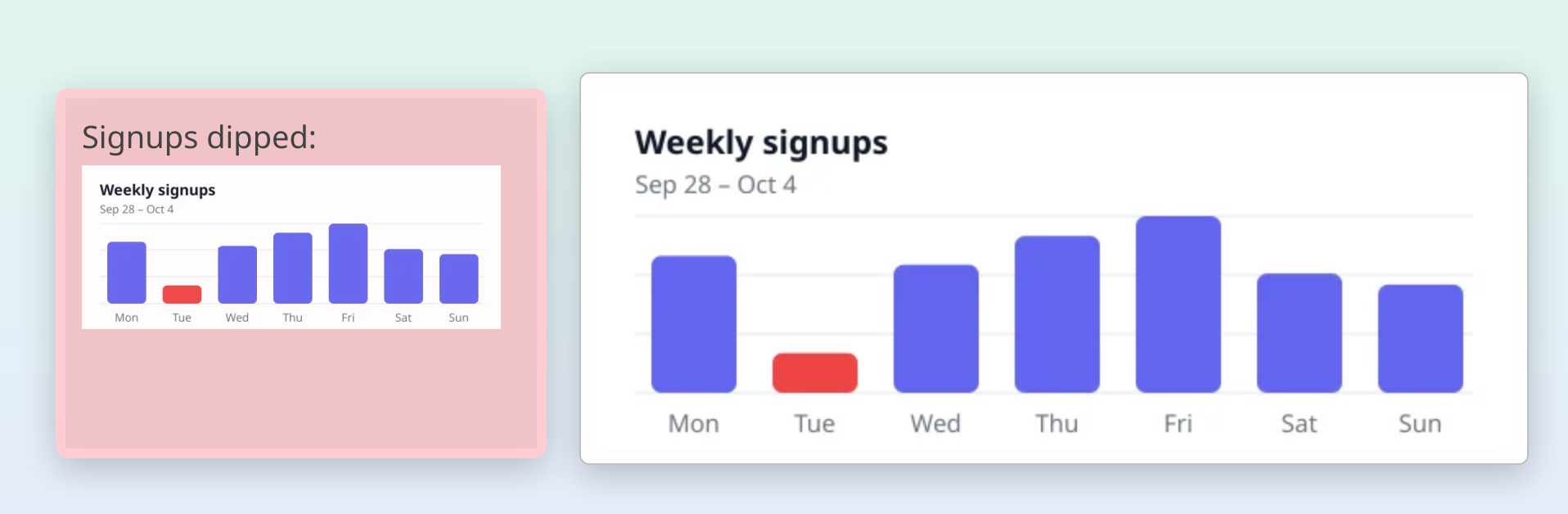
Image Previews
Hover over an image link or a PDF shortcut to see a thumbnail preview without opening the file. The preview pops up near your cursor and disappears when you move away.
This works for all image formats and PDFs.
Photos from Your Phone
Photos taken on a phone are automatically rotated to the correct orientation when you paste or drag them in. No need to fix them manually.
What Happens When You Delete a Note
When you permanently delete a note from the trash, any screenshots that were pasted into it are also cleaned up from your computer. Images you dragged in from elsewhere are not affected, only the copies BetterStickies made.
See Also
- Pasting Content: what happens when you press Ctrl+V
- File Shortcuts: drag files into notes as clickable shortcuts
- Text Formatting: bold, headings, checklists, and more
- Getting Started: overview of notes and the hub