Reminders
Set a reminder on any note and get a notification when it's due, so you never forget what's on your sticky note.
Adding a Reminder
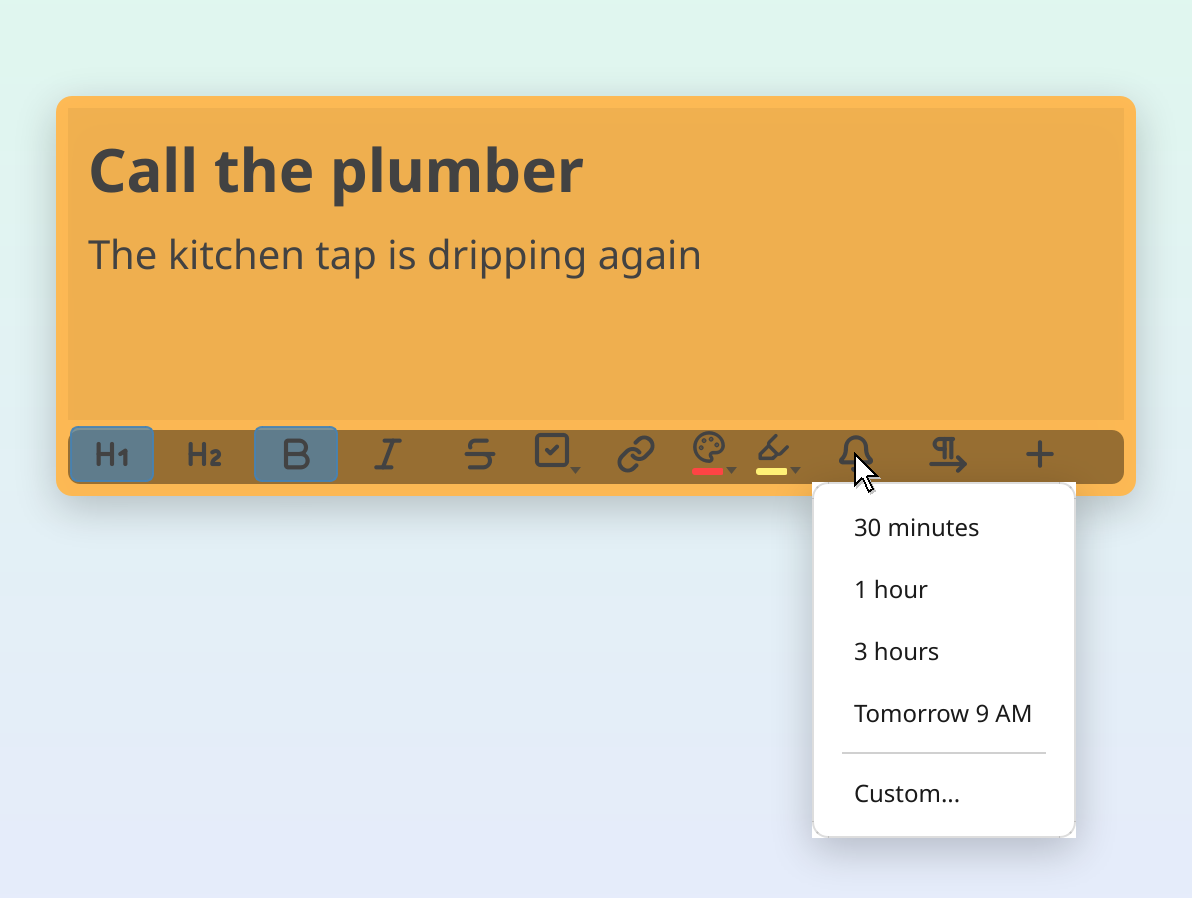
Click the bell icon in the note's footer bar to see quick presets, or press Ctrl+R to jump straight to the custom date/time picker.
Quick Presets (Bell Button)
The bell button menu offers:
- 30 minutes: remind me in half an hour
- 1 hour
- 3 hours
- Tomorrow 9 AM
- Custom…: opens a date and time picker for any future date/time
Custom Date & Time
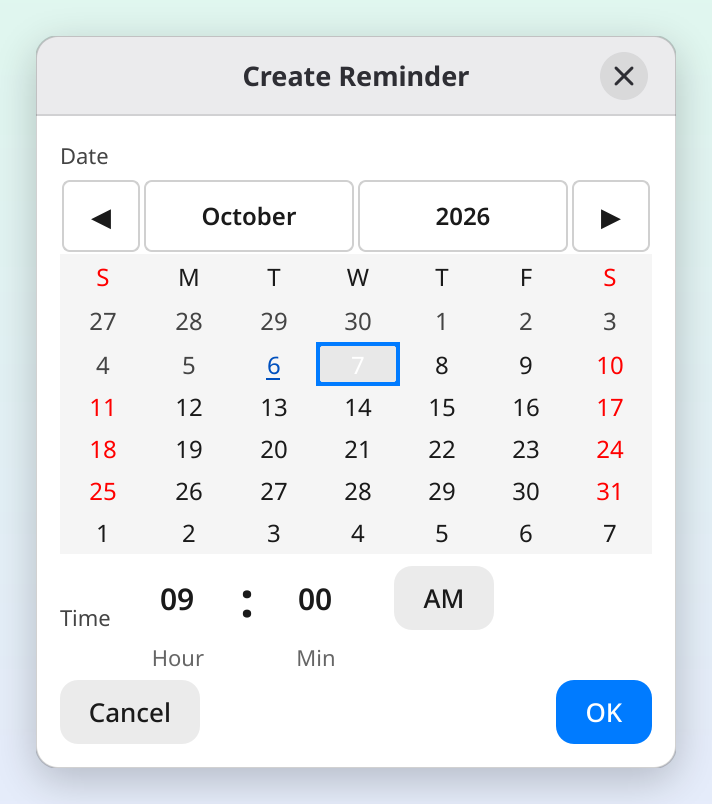
Selecting Custom… opens a calendar and time picker. Pick a date (the arrows beside the month's name, or Page Up and Page Down, change the month), set the time and click Add Reminder, or press Enter (Return on a Mac); double-clicking a date also adds the reminder (on a desktop set to open items with a single click, a click only picks the date and a double-click does nothing: press Enter). The time follows your clock: 24-hour where your language and region use it, otherwise with AM and PM in your language. When you edit a reminder, the button says Save.
A time that has already passed can't be chosen: the time fields get a red outline, the window says "This time has already passed.", and the button stays off until you pick a later time.
Reminder Strip
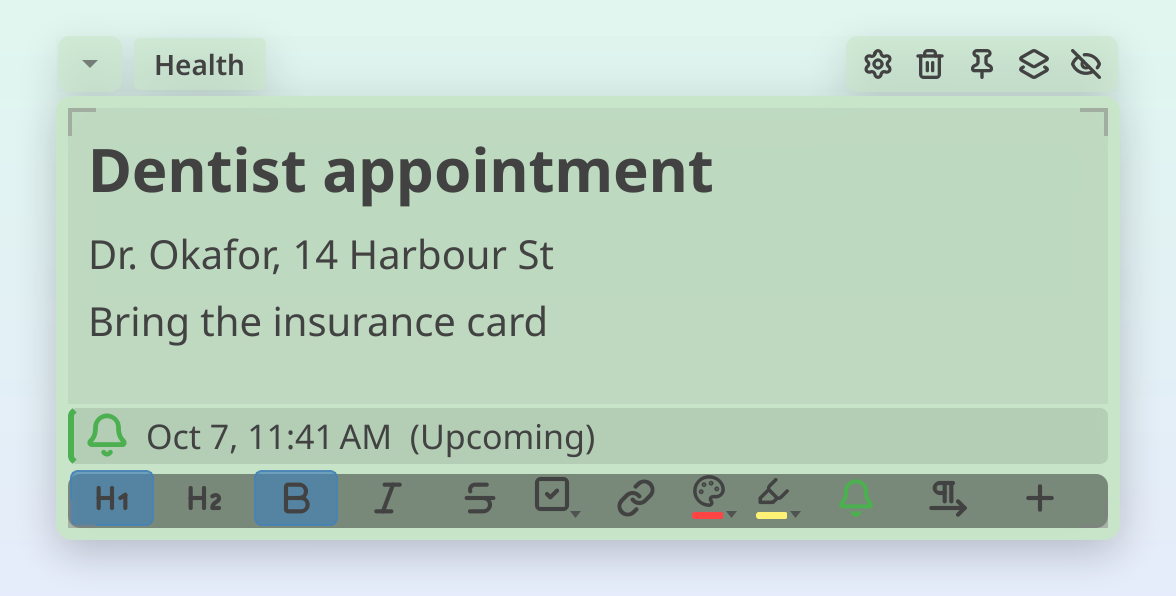
After creating a reminder, a slim strip appears above the note's footer showing the reminder date, time, and status. The strip has a tinted background and a colored bar on its leading edge (the left edge, or the right edge in a right-to-left note) that shows its status:
- Green: upcoming (more than 24 hours away)
- Orange: due soon (within 24 hours)
- Red: overdue
The strip updates automatically as time passes and stays visible on every page of a multi-page note. Click it to Edit or Remove the reminder. The strip is separate from your note text: editing, copying, or deleting text never affects the reminder.
Bell Button Status
The bell icon in the note footer changes color to reflect the reminder status at a glance:
| Bell Color | Meaning |
|---|---|
| Default (matches note text) | No reminder set |
| Green | Upcoming reminder |
| Orange | Due within 24 hours |
| Red | Overdue |

Editing a Reminder
Click the bell icon on a note that already has a reminder. Instead of the creation menu, you'll see:
- A summary of the current reminder date and time
- Edit Reminder…: opens the date/time picker pre-filled with the current values
- Remove Reminder: deletes the reminder (the strip disappears)
Reminders Overview (Hub)
Click the bell icon in the hub to see all reminders across all your notes in one place.
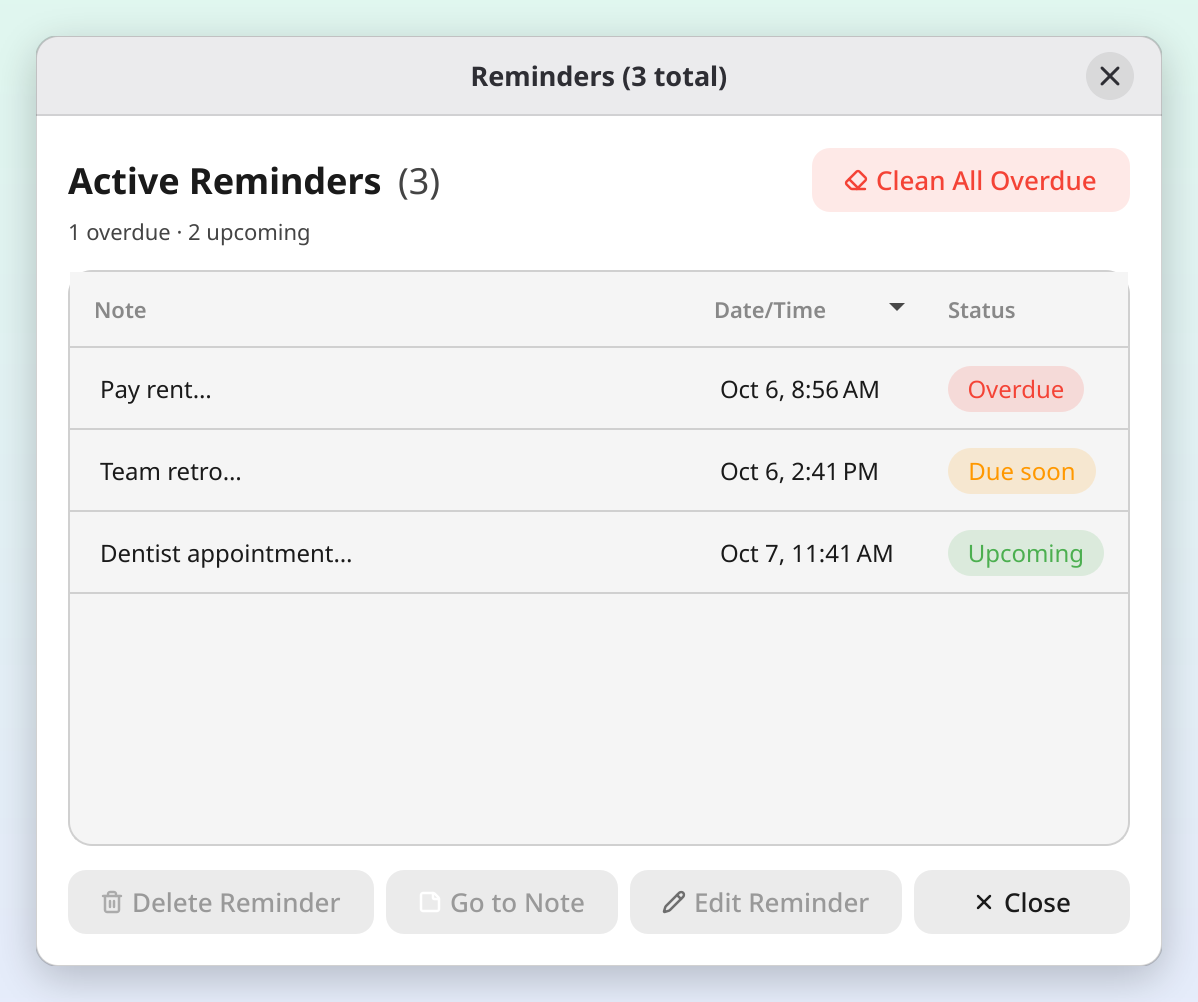
Each reminder is a card showing its note, like the cards in Search:
- The note's color, title and first lines of text
- A colored label at the right: Overdue (red), Due soon (orange) or Upcoming (green)
- The bell and the date and time the reminder is due
The list is in time order, so overdue reminders always come first. The number beside the Active Reminders heading counts them, with how many are overdue and upcoming underneath. Hover a card to read more of the note when the card can't show it all. Double-click a card, or select it and press Enter, to go to its note.
Actions
- Go to Note: opens and focuses the note
- Edit Reminder…: change the date/time
- Delete Reminder: remove it permanently. Select several cards (hold Ctrl and click, or Shift+Click for a range) to delete them together
- Clean All Overdue: bulk-delete all overdue reminders (appears at the top of the window when you have overdue reminders)
Overdue Badge
When you have overdue reminders, the hub's bell icon shows a red badge with the count. This updates in real time.
Notifications
When a reminder comes due, BetterStickies shows a system notification with a sound. Clicking the notification takes you to the note.
- Notifications fire once when the reminder time arrives
- The reminder stays visible as "overdue" until you remove it
- On startup, if you have overdue reminders, BetterStickies shows a single summary notification (e.g., "You have 3 overdue reminders"). This appears every time you launch the app so you won't miss them. Clicking the notification opens the Reminders overview
Notification Sound
The sound is on by default. To turn it off, open Menu > Settings… from the hub and turn off Enable sound notifications in the Reminders section of the General tab. Test Sound, beside its switch, plays the sound once.
One Reminder Per Note
Each note supports one active reminder. This keeps things simple: your sticky note is the reminder. If you need a second reminder, create another note.
To change an existing reminder's time, click the bell and select Edit Reminder… rather than trying to add a new one.
See Also
- Search Notes: find notes with reminders quickly using search
- Note Tabs: one reminder per note, shown on every page
- Free & Premium: compare what's included in each version